How to Add an Interactive Game to Your TikTok LIVE (LIVE Studio, OBS, TikFinity)
· MayaPlay team
When you add an interactive game to your TikTok LIVE, your viewers don't just watch, they play: every gift, like and follow changes the game on screen in real time. This guide walks you through putting a MayaPlay game on stream from scratch: opening the game, connecting your TikTok account, adding the game to TikTok LIVE Studio or OBS, the vertical 9:16 layout and using it with TikFinity.
Everything here applies to all MayaPlay TikTok LIVE games; the examples use Troll Tower. You don't need any technical knowledge, and setup takes a few minutes. The games' on-screen text is in Turkish, so we give the Turkish button names with their meaning.
What you need
Before you start, have these ready:
- A Windows computer. The game comes with a one-click launcher. On first start, the launcher downloads what it needs (the game's TikTok bridge and a portable Node.js that needs no install) into the game's folder.
- Chrome or Edge. The game opens full screen in its own Chrome or Edge window. If neither is installed, your default browser is used.
- An internet connection. The license is checked at start, and the game receives your stream's gifts over the internet.
- A license key or a store account. When you buy, you get a 12-character license key made for you. Add it to your MayaPlay account once and from then on you just log in.
- Streaming software. TikTok LIVE Studio or OBS Studio. Which one you use depends on what your TikTok account can stream with; steps for both are below.
- A TikTok account that can go LIVE. TikTok sets the requirements for going LIVE and changes them from time to time; check TikTok's help pages for the current rules.
If a 3D game is heavy for your computer, open the game's control panel (H key) and set “Görüntü kalitesi” (graphics quality) to Low; that lowers the load while your streaming software runs at the same time.
Opening the game (OYUNU BASLAT)
After you buy, you receive a zip file and a license key. The first start goes like this:
- Extract the zip file to a folder on your computer. Don't run the game from inside the zip; extract it first.
- Double-click OYUNU BASLAT (start game) in the folder. On first start the required parts are downloaded once, which can take a few minutes depending on your connection. Don't close the black window that opens meanwhile.
- The game opens full screen with the Hesabımla gir (log in with my account) screen. Log in with your MayaPlay account (or Kayıt ol to sign up). If this game's key isn't on your account yet, type it once and press Ekle (add), then Oyna (play). You can also enter the key directly on the Anahtarla aç (open with key) tab.
- The minimised “TikTok köprüsü” (TikTok bridge) window is the link between the game and your stream; keep it open until the stream ends.
Your account is remembered, so next time the game opens by itself. The game also updates itself on every start: if there's a new version, a short “Oyun güncelleniyor...” (updating) message appears on the lock screen, then the game opens. Press F11 to leave full screen and F in the game to go full screen again.
Connecting your TikTok account
To see gifts, the game needs to know which stream to connect to. On first start it asks for your TikTok username:
- Start your TikTok LIVE first, then open the game. The game connects to the account that is live.
- Type your username without the @ and press Bağlan (connect).
- Once connected, gifts, likes, follows and shares start reaching the game. You're asked for your username only once; it's remembered after that.
To change the username, open the control panel with H and press TikTok hesabını değiştir (change TikTok account). From the same panel you can test gifts without going live and change your character, screen layout and sound. Close the panel with H when you're done so it doesn't show on stream.
Window capture in TikTok LIVE Studio
TikTok LIVE Studio is TikTok's own desktop streaming app. Add the game to your scene like this:
- Open the game and leave it full screen; don't minimise the window.
- In LIVE Studio, add a new source to your scene and choose Window capture.
- Pick the game's window (the game running in Chrome or Edge) from the list.
- Fit the picture to your stream canvas. For a vertical stream, also see the 9:16 setting in the OBS section below: the game's screen layout setting applies to LIVE Studio too.
- Click the game once so it captures the mouse. To click the game's panel, press Esc first.
If the capture is black, make sure the game window isn't minimised and that you picked the right window; minimised windows can't be captured.
Window capture in OBS and vertical 9:16
If you stream to TikTok with OBS Studio, you add the game the same way. A vertical (phone) stream needs a few more settings:
- In OBS, press + in the Sources panel and choose Window Capture.
- Pick the game's window from the list. If the picture stays black, change the capture method in the source properties (on Windows 10 and 11, “Windows 10 (1903 and up)” usually works).
- For a vertical stream, set the base (canvas) resolution to 1080x1920 in Settings > Video.
- In the game, open the control panel with H and set Ekran düzeni (screen layout) to Dikey 9:16 (vertical 9:16). The game's interface rearranges for a vertical screen.
- Fit the game source to the canvas: right-click it and choose Transform > Fit to screen.
For a horizontal (PC) stream you don't need to change anything: the game fills the screen. The gift menu and top gifters box are drawn inside the game, so you don't need extra sources for them.
Using it with TikFinity
TikFinity is a TikTok LIVE tool streamers use for alerts, sounds and automation. If you already use TikFinity, you don't need the game's own bridge; the game takes gifts straight from TikFinity:
- Open TikFinity and make sure it's connected to your stream.
- Open the game. When it asks for your TikTok username, press TikFinity kullanıyorum (I use TikFinity).
- If you connected with your username before, open the panel with H in the game and press the TikFinity button.
Every MayaPlay TikTok LIVE game works with TikFinity. In Needle in a Haystack+ you can also link single gifts to special effects with TikFinity's “Webhook” action; the ready-made addresses are in the game's Yapılandırma (configuration) section.
Common problems
- The game doesn't see gifts: make sure you started the TikTok LIVE first, then opened the game, and typed your username correctly without the @. The minimised TikTok bridge window must stay open.
- The bridge shows a rate limit error: connect through TikFinity, or get a free Euler Stream key and start the bridge with it; the YAYINCI document that comes with the game explains how.
- A different game opens: only one game bridge runs on a computer at a time. The launcher closes an old bridge by itself; if the problem stays, close any leftover black windows and double-click OYUNU BASLAT again.
- The picture stutters: set “Görüntü kalitesi” (graphics quality) to Low in the game's panel and turn off sources you don't use in your streaming software.
- Black screen in the capture: don't minimise the game window, pick the right window from the list, and change the capture method in OBS.
- License error: an internet connection is needed at start. The key works on a limited number of computers; if you moved to a new computer, message us on WhatsApp.
Still choosing a game? The TikTok LIVE games page lists all our games with their trailers. For gift coin values, see the TikTok gift values table.
Games in this guide
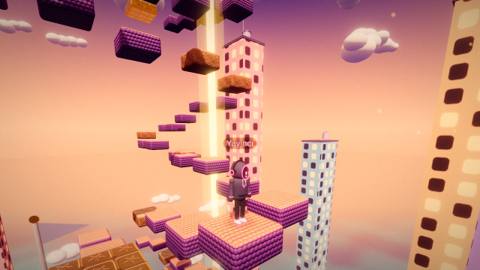 Troll TowerA 3D parkour tower shaped by your viewers' gifts. Shields, elevators, wind, ice rinks, slaps: every gift changes the…
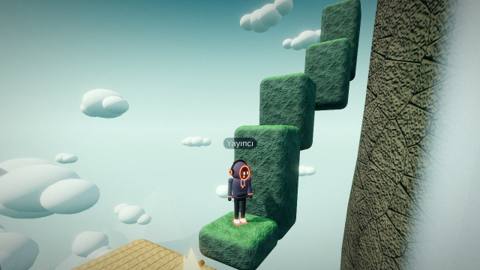 Climb!Jump between rocks spiraling around a giant mountain, grab the ledges and climb to the summit. Viewers send storms…
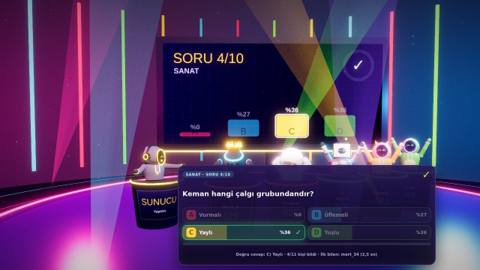 Quiz ShowYou're the host. In a glittering TV studio you read out the questions, and viewers type A, B, C or D in chat. The…
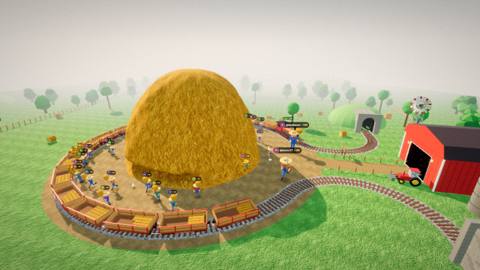 Needle in a Haystack+10,000,000 straws, 1 needle and a train waiting on an Ω-shaped track. Fork up the hay and carry it to the wagons; when…